



← Back /blog/Connect Google Calendar With Your BooSend AI Agent

Connect Google Calendar With Your BooSend AI Agent

Author profilewritten by Marko Filipovic | @automatewithmarko
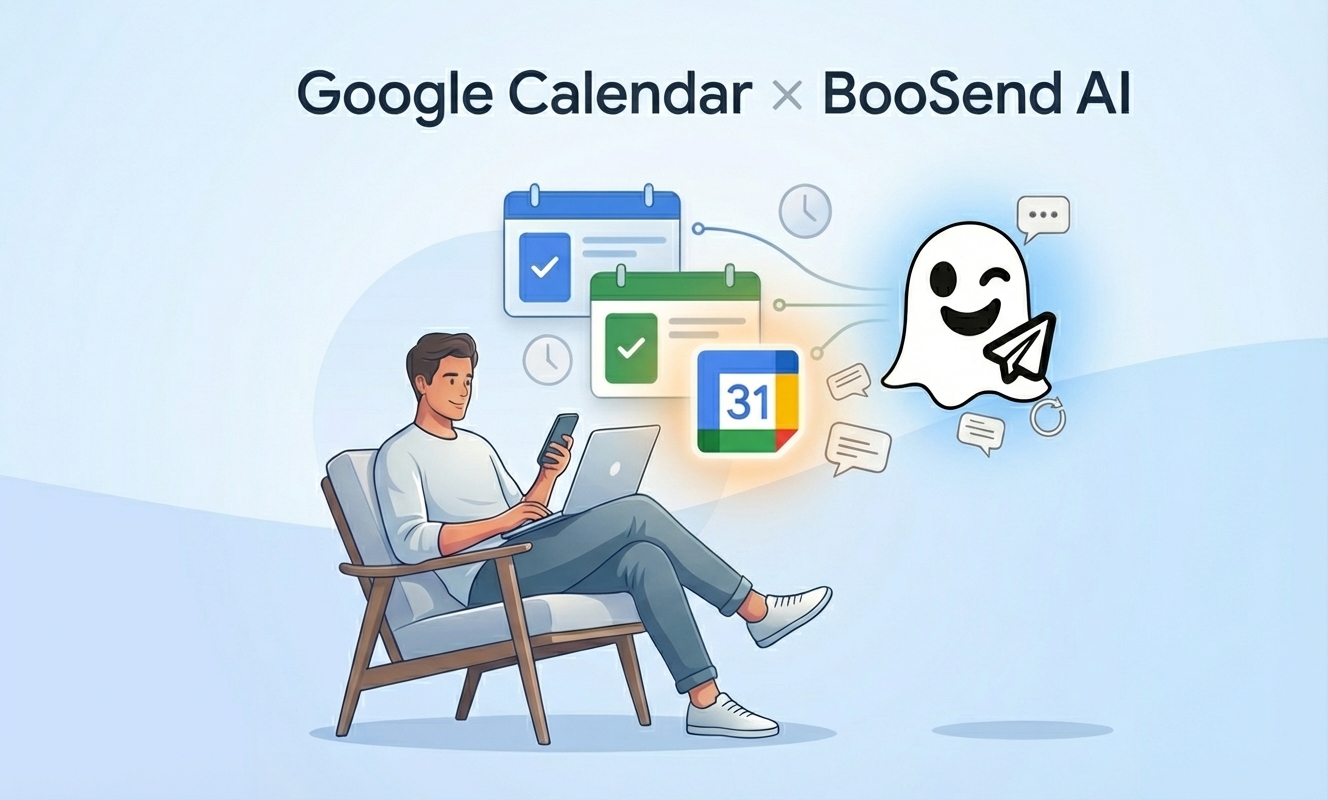
Google Calendar integration cover

BooSend allows your AI agent to connect directly with Google Calendar and manage events on your behalf using tool calls. This means your AI can perform real actions inside your calendar without you needing to manually step in. Everything happens directly from the conversation.

For example, when your AI agent books a lead for a call, the event is automatically added to your Google Calendar. There is no need to open Google Calendar separately or copy details across. The booking simply appears in your schedule, already organized and ready.

How the Google Calendar Integration Works

Once Google Calendar is connected, your BooSend AI agent becomes capable of handling scheduling tasks for you. It can create events, book calls, and manage calendar entries automatically while interacting with users. This is especially useful for sales calls, demos, consultations, or any workflow where timing and availability matter. The goal of this integration is to remove friction.

How to Configure It?

Step 1: Open the Integrations Page in BooSend

Start by going to the Integrations page inside your BooSend dashboard. From there, locate Google Calendar and click on Create Integration. This will open the configuration screen where you will set up the connection between BooSend and your Google account.

Step 2: Copy the OAuth Redirect URL

Start by going to the Integrations page inside your BooSend dashboard. From there, locate Google Calendar and click on Create Integration. This will open the configuration screen where you will set up the connection between BooSend and your Google account.

Step 3: Create OAuth Credentials in Google Cloud

Next, open the Google Cloud Console by visiting https://console.cloud.google.com/apis/credentials. Once there, click on Create Credentials and choose OAuth Client ID. When asked for the application type, select Web Application. This tells Google that BooSend will be accessing your calendar through a web-based integration.

Create OAuth credentials in Google Cloud

Step 4: Add the Authorized Redirect URI

On the next screen, give the application a name that helps you remember its purpose. Scroll down to the Authorized Redirect URIs section and click Add URI. Paste the OAuth Redirect URL you copied from BooSend into this field, then click Create to finish setting up the credentials.

Add authorized redirect URI

Step 5: Copy the Client ID and Client Secret

After creating the OAuth client, Google will display your Client ID and Client Secret. These are required to complete the connection, so copy both values carefully.

Copy Client ID and Client Secret

Step 6: Enter the Client ID and Client Secret in BooSend

Return to BooSend and paste the Client ID and Client Secret into the configuration fields, then click Save Configuration.

Enter credentials in BooSend

Step 7: Connect With Google

After saving the configurations, click on Connect with Google.

Connect with Google button

On the permissions screen, select all permissions and click Continue. Once approved, you will be redirected back to BooSend automatically.

Google permissions screen

Step 8: Confirm the Connection

When the connection is successful, you will see a Connected badge next to Google Calendar inside the BooSend integrations page. This confirms that your Google Calendar is now linked and ready to use.

Connected badge confirmation

Using Google Calendar With Your AI Agent

To start using Google Calendar actions, open a Basic or Advanced AI agent inside BooSend and add Google Calendar as a tool. Once connected, the agent can create events, book calls, and manage schedules automatically during conversations with users.

From this point onward, your AI agent is fully capable of handling calendar-related tasks for you, making scheduling seamless and completely hands-off.

AI agent with Google Calendar tool